The Ask
Sarah did not ask for a new website. She asked for proof.
After three months as Communications Manager at Monarch Park Community Trust, she had a clear picture of how broken the WordPress site was. The events page showed programs from two summers ago. The homepage slider promoted a grant deadline that had long since passed. The donation page linked out to CanadaHelps because nobody had ever figured out how to integrate giving directly. And a volunteer's accessibility audit had turned up 53 violations on a site whose programs serve seniors, newcomers, and community members with disabilities.
She had done her research on alternatives. She had read about Payload CMS and liked what she found. But before she could take anything to the board, she needed to answer the three questions every nonprofit board asks when technology money is on the table:
- Can our staff actually use this?
- Does it solve the problems we have now?
- How long does it take to get something running?
The answer to the last question turned out to be about twenty minutes.
Twenty Minutes
We did not build a full website. We built just enough to answer Sarah's questions: a working content management system with the content types Monarch Park actually needed, running locally on a laptop.
The stack was Payload CMS with a PostgreSQL database and Next.js for the frontend. If those words mean nothing to you, that is fine. Sarah did not know what they meant either. What mattered to her was what the finished product looked like from the other side of the screen.
I started a database, ran a setup command, and configured three things: where the database lives, a security key, and the address the admin panel runs on. Then I started the server.
A setup screen appeared asking me to create the first admin account. I typed in an email and password, clicked Create, and the dashboard loaded.
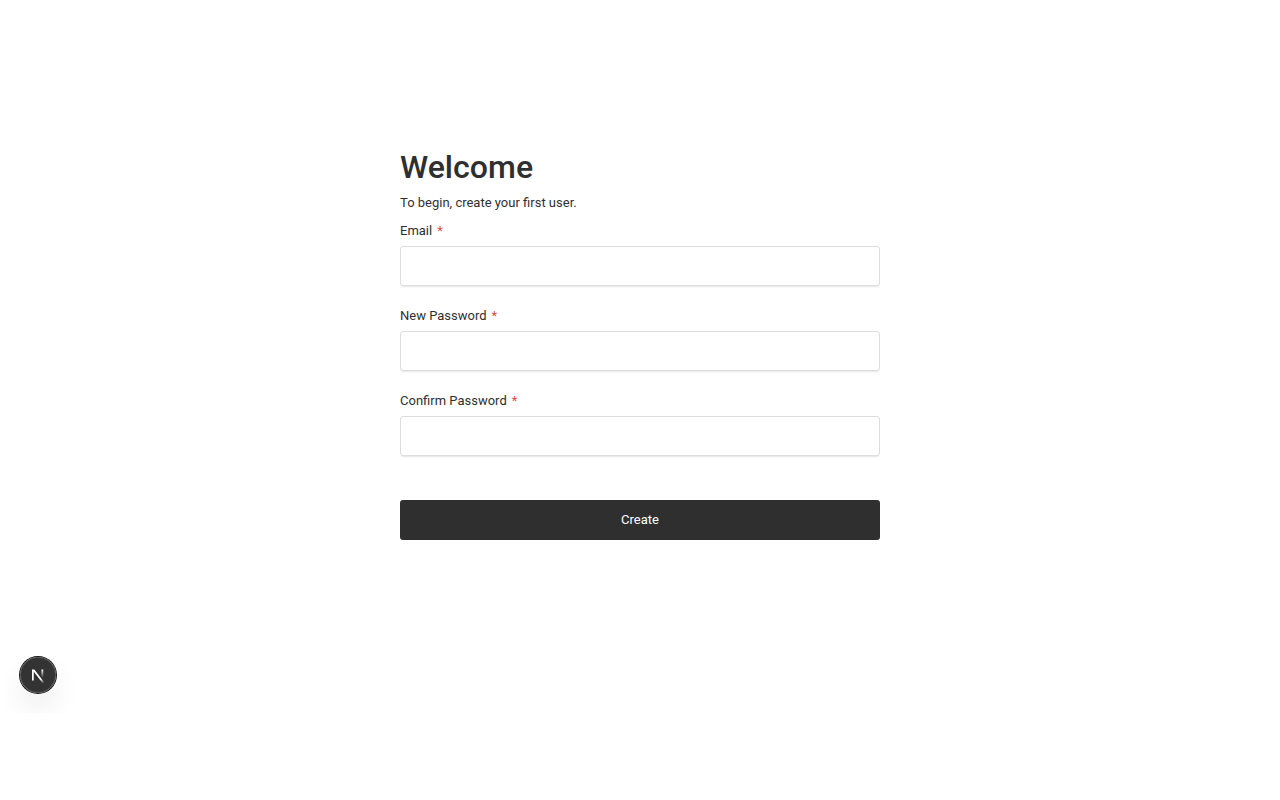
That was it. No plugin recommendations. No theme marketplace. No update notifications with orange badges competing for attention. Just a clean panel with the content types I had defined listed in a sidebar. I turned the laptop around to face Sarah.
Where Are All the Menus?
Her first reaction was not about the technology. It was about what was missing.
"Where are all the menus?" she asked.
In WordPress, Monarch Park's admin sidebar had accumulated over a dozen items: Posts, Pages, Media, Comments, Appearance, Plugins, Users, Tools, Settings, WooCommerce (from a donation plugin they stopped using two years ago), Yoast SEO, Contact Form 7, and a few others nobody remembered installing. Sarah told me she only ever used three of them. The rest were visual clutter at best and landmines at worst. She had once accidentally changed the site's permalink structure while trying to find the contact form settings. It took the volunteer developer two days to fix.
In Payload, the sidebar showed exactly what we had defined: Users, Media, Pages, Posts, Events, Programs, Team Members. Nothing else. Nothing Sarah could accidentally click that would break the site. Nothing that required a phone call to a developer to understand.
"Can I click on something?" she asked.
Ninety Seconds
I told her to create an event. She clicked Events in the sidebar. She clicked Create New. A clean form appeared with labelled fields: title, start date, end date, location name, location address, description, featured image, status, registration link.
She typed in the details for an upcoming Heritage Walk. She selected "Upcoming" from the status dropdown. She uploaded a photo. She clicked Publish.
The whole process took about ninety seconds.
Then I asked her how long it took to post an event on the current WordPress site.
"I don't," she said. "I email the details to our volunteer and he does it. It takes about a week."
The WordPress events workflow went like this: Sarah would write the event details in a Word document, email it to the volunteer developer, who would log into WordPress, create a new post (not a custom post type, just a regular post with a category tag), manually format the content, upload any images, and publish. If Sarah wanted a change after that, she would email again and wait. If the volunteer was busy, the event might not go up until after it had already started.
In Payload, Sarah created the event herself in ninety seconds. If she needed to change the date next week, she could log in and change it. If the event was cancelled, she could set the status to Cancelled and the frontend would handle the rest. No emails. No waiting. No Word documents.
The time savings alone were significant. But the real change was in who controlled the information. In WordPress, Sarah's content was mediated through someone else's schedule and availability. In Payload, she owned the entire process from draft to publish.
What WordPress Never Solved
After the event creation, I walked Sarah through the other content types to show her how each one addressed a specific problem she had raised in our earlier conversations.
The stale events problem. In WordPress, there was no way to distinguish an upcoming event from a past one. Events were just posts. Once published, they stayed on the site until someone remembered to take them down. In Payload, every event has a status field: Upcoming, Past, or Cancelled. The frontend filters automatically. Past events disappear from the homepage. Cancelled events show a notice. Nobody has to remember anything.
The scattered contact information. Monarch Park's phone number appeared in three places on the WordPress site, and two of them were wrong. The number had changed eight months earlier, but nobody realized it was hardcoded into the footer template, the contact page, and a sidebar widget. In Payload, the phone number, address, email, and social links all live in a single place called Site Settings. Every page on the site reads from that one source. Change it once, it updates everywhere.
The programs nobody could update. Monarch Park's programs page was a single WordPress page with all the program information typed directly into the content editor. There was no way to sort programs, filter by age group, or display them individually. Adding a new program meant scrolling to the bottom of a very long page and typing more content. In Payload, each program is its own entry with structured fields: name, description, schedule, age group, fee, registration status. Staff can add, edit, or remove programs without touching any other content on the site.
The team page that was always out of date. Staff turnover at a nonprofit is a fact of life. Monarch Park's team page was another single WordPress page with headshots and bios typed into the content editor. When someone left and someone new joined, updating the page meant editing HTML, resizing photos in an external tool, and hoping nothing broke. In Payload, each team member is their own entry. Upload a photo, type a name and title, write a bio. Remove someone by deleting their entry. The page rebuilds itself.
Sarah did not say much during this part. She just nodded. I could tell she was doing math in her head, calculating how many hours her team had lost over the past year to workarounds that should not have been necessary.
One Source of Truth
The theme running through all of these improvements was the same: information should live in one place, and the website should read from that place.
In WordPress, Monarch Park's content was scattered across post types, page builders, widget areas, theme templates, and plugin settings. Finding where a specific piece of information lived required institutional knowledge that walked out the door every time a staff member or volunteer moved on.
In Payload, every piece of content has a defined home. Events are in Events. Programs are in Programs. The address is in Site Settings. The navigation menu is in Navigation. There is no guessing. A new staff member could sit down at the admin panel and understand the entire content structure in five minutes, because the structure is visible and self-explanatory.
This was not a technical achievement. It was an organizational one. And for a nonprofit with limited staff and high turnover, it was arguably the most important feature of all.
The Laptop
Sarah spent about fifteen minutes clicking through the rest of the admin panel after the walkthrough. She created test events. She edited the site settings. She uploaded images and watched them appear instantly. She found the drafts feature and saved a half-finished program description without publishing it.
Then she closed the laptop and said: "I need to show this to James."
James was the Executive Director. The one who controlled the budget. The one who had heard the phrase "website rebuild" before and associated it with six-figure invoices from agencies that delivered templates nobody on staff could update.
Sarah knew that showing James a clean admin panel was not going to be enough. He was going to ask about cost. He was going to ask about timeline. He was going to ask what happens if the developer gets hit by a bus. He was going to ask every question that a responsible steward of nonprofit funding should ask.
She was right about all of that.
What's Next
The conversation Sarah had with James is the subject of Part 3: how to make the case to your board for a website rebuild, what questions they will ask, and how to answer them honestly.
If you are a developer interested in the technical details behind the proof of concept we built, that is covered in the companion post: How to Set Up Payload CMS with PostgreSQL and Docker.
This is Part 2 of a series. Read Part 1: Why Non-Profits Are Moving Away From WordPress if you have not already. Get in touch if your organization is considering a similar move.